

Hours-long meetings, frantically taking notes, and the tedious task of documenting everything and assigning action items after the call – all of that is a thing of the past with the monday.com AI Notetaker. The AI-powered meeting assistant automatically joins your online meetings, transcribes conversations in real time and provides you with structured summaries and actionable tasks – straight into your monday.com workspace. In this blog, you’ll find out what the AI Notetaker can do, how to set it up and why it will fundamentally change your meeting culture.
What is the monday.com AI Notetaker?
The monday.com AI Notetaker is an AI-powered tool that helps your team stay engaged and focused during meetings. Instead of taking notes at the same time, you can concentrate fully on the conversation whilst the AI takes care of the documentation for you.
In practical terms, this means that the note-taker joins your online meeting on Zoom, Microsoft Teams or Google Meet, transcribes the conversation in real time and then automatically generates:
- A concise summary of the key points
- A full transcript of the entire conversation
- A list of specific action items that can be transferred directly to your monday.com boards
- An AI chatbot that lets you ask questions about the meeting afterwards
This way, conversations are transformed into structured, searchable and, above all, actionable insights, seamlessly integrated into your daily work.
Why is the AI Notetaker a worthwhile investment for your team?
Meetings take time, and following them up often takes even longer. This is exactly where the AI Notetaker comes in:
- You stay fully engaged in the conversation: no typing at the same time, no divided attention. You join in the discussion rather than just taking notes.
- No information is lost: the full transcript ensures that even details which might be overlooked in the heat of the moment are documented.
- Action items become real workflows: tasks from the meeting are added to your boards as sub-items with a single click – complete with the person responsible, status and due date.
- CRM integration with no extra effort: In monday CRM, meeting summaries automatically appear in the Emails & Activities timeline for the relevant contact. Your sales team has the full context at their fingertips at all times.
- Knowledge stays within the team: even colleagues who were unable to attend the meeting can access the full context via the sharing feature.
How to set up the monday.com AI Notetaker
Setup takes just a few minutes:
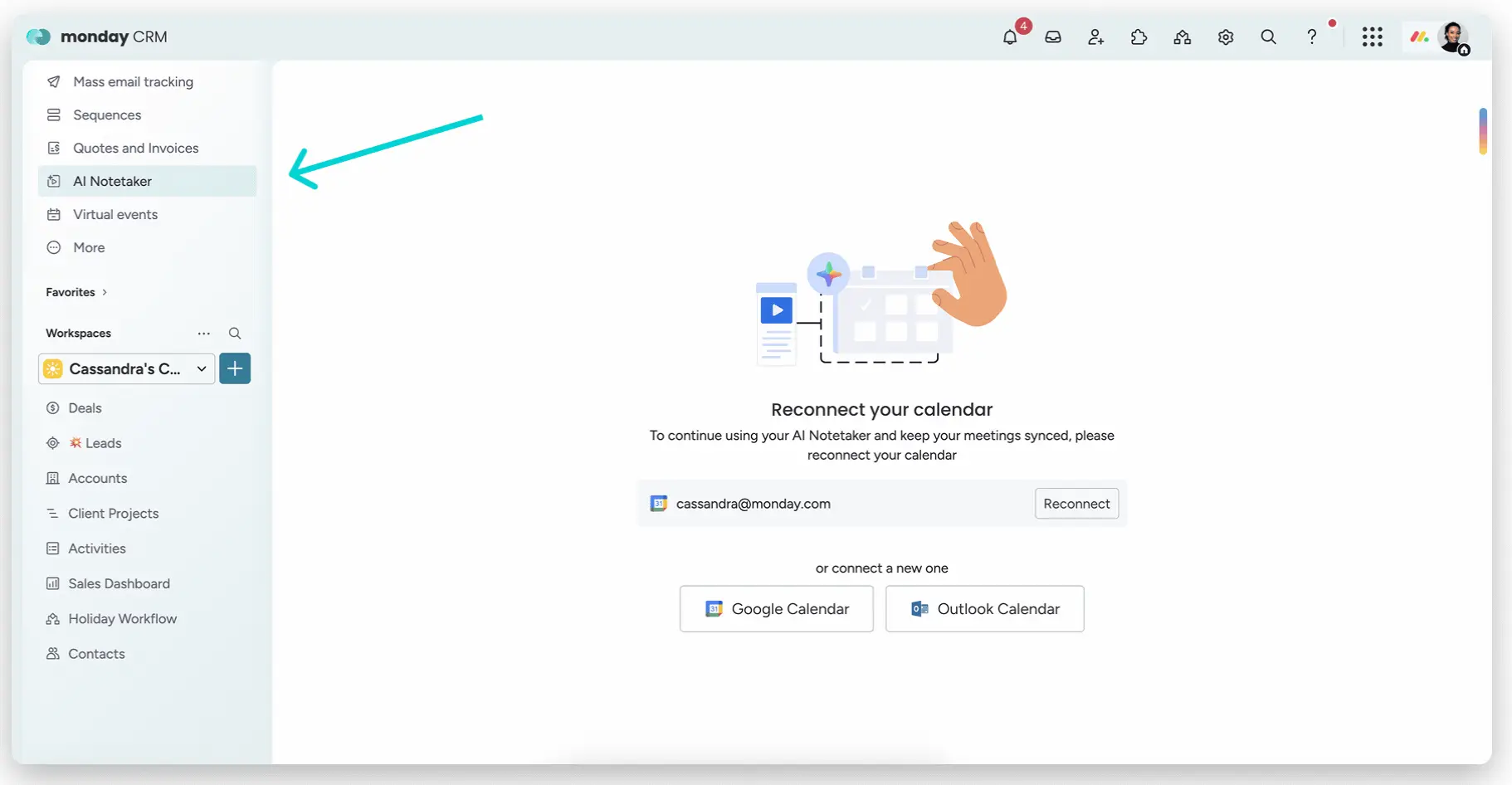
1. Open the AI Notetaker: Click on the AI Notetaker button at the top of the left-hand sidebar in your monday.com account.
2. Link your calendar: To ensure that Notetaker recognises your meetings, you need to link your Google or Outlook calendar. This is a prerequisite for using the app.
3. View meetings: Once your calendar is connected, you’ll see two sections on the overview page: your Meeting Summaries (past meetings) and your Upcoming Meetings.
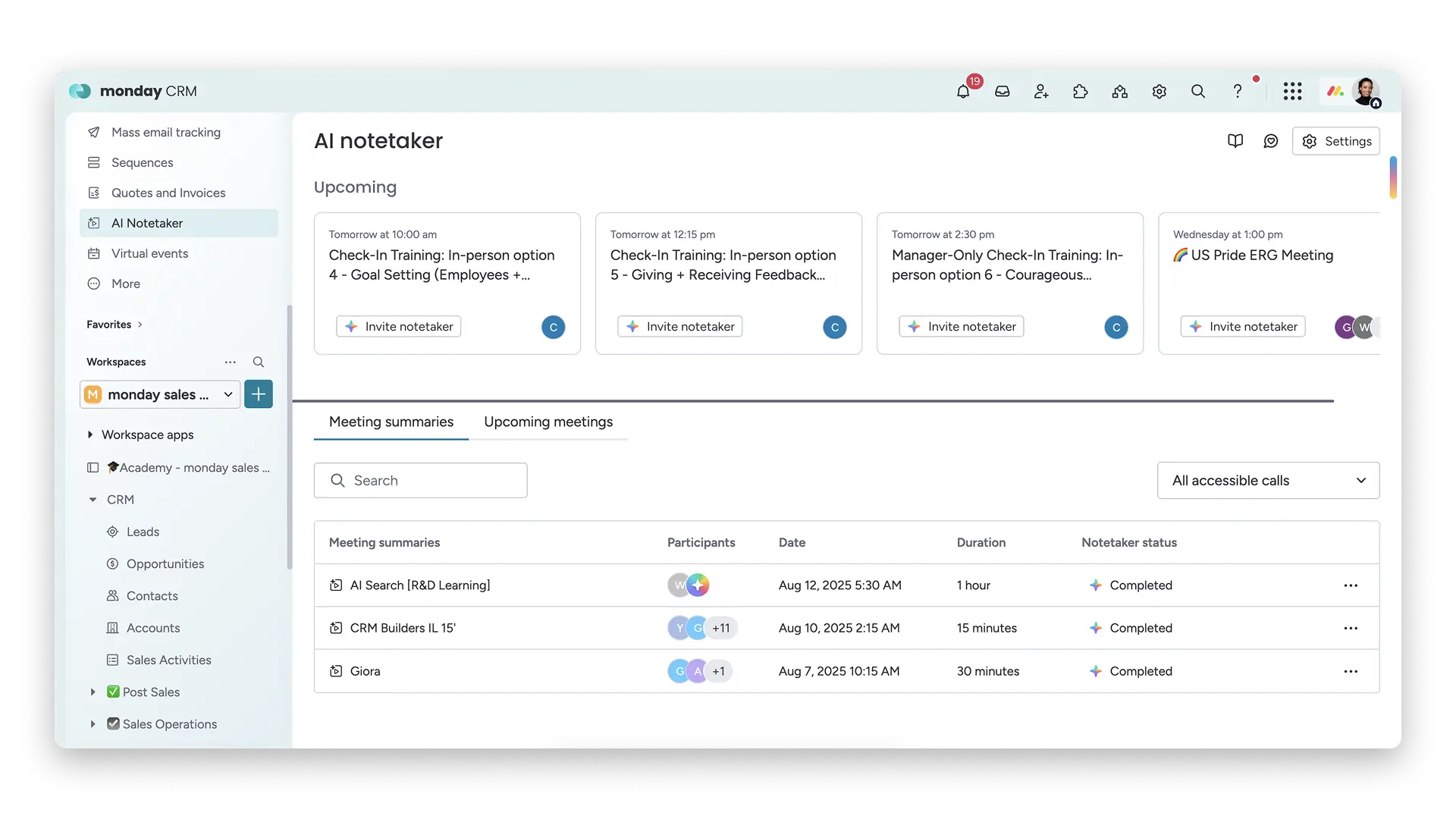
4. Invite a note-taker to the meeting: For every upcoming meeting, you’ll find the ‘Invite note-taker’ button. Important: The meeting link (Zoom, Teams or Google Meet) must be included in the calendar invitation so that the bot can join.
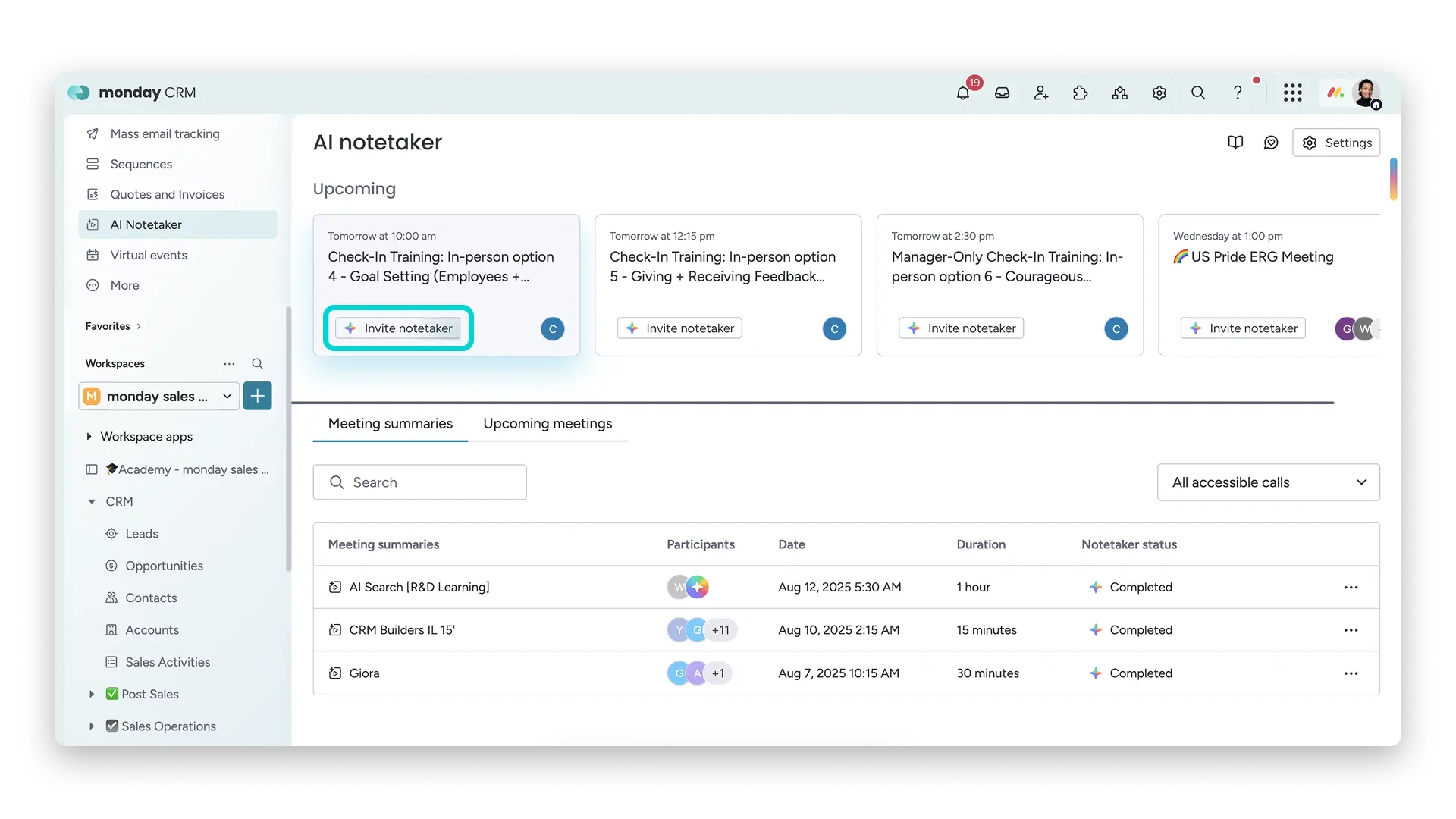
5. Additional requirements: When you invite the AI Notetaker to your meeting, it will join your Zoom, Microsoft Teams or Google Meet session. To start recording, the bot must be granted recording permission by the host. If you are using Zoom, your Zoom settings must also be configured to allow external bots or guests to join meetings.
6. Optional: Automatic join: In the settings, you can configure the Notetaker to automatically join all meetings you create or all meetings to which you are invited. If you disable both options, joining remains entirely manual.
By the way: The note-taker joins the meeting two minutes before the scheduled start – so they’re guaranteed not to miss a thing. In the participant list, they appear as ‘monday Note-taker’, so everyone knows they’re there.
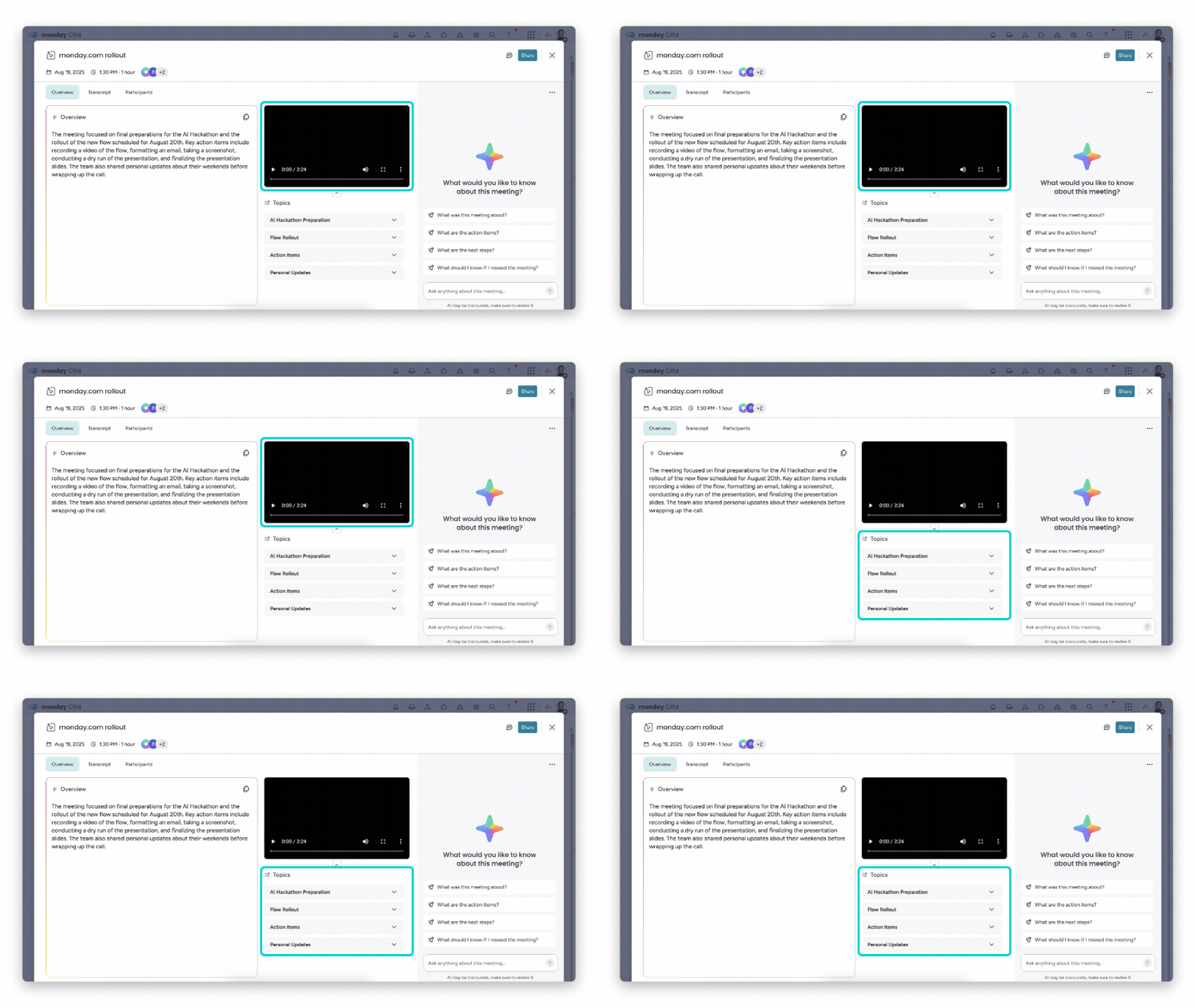
7. After your meeting: To view the notes from your meeting, click on any meeting summary. Here you’ll find the minutes, the meeting summary, a video recording of the meeting, action points and more.
.gif)
On the left-hand side of the meeting overview screen, you will see three tabs:
Overview: The ‘Overview’ tab is the default view when you open a meeting. On the left, you will see a brief summary of the meeting.
Transcript: Click on the ‘Transcript’ tab to view the full transcript of the meeting. Participants are identified by icons.
Participants: The ‘Participants’ tab displays a complete list of attendees. Here you can see each participant’s attendance time in minutes and as a percentage of the total meeting duration.
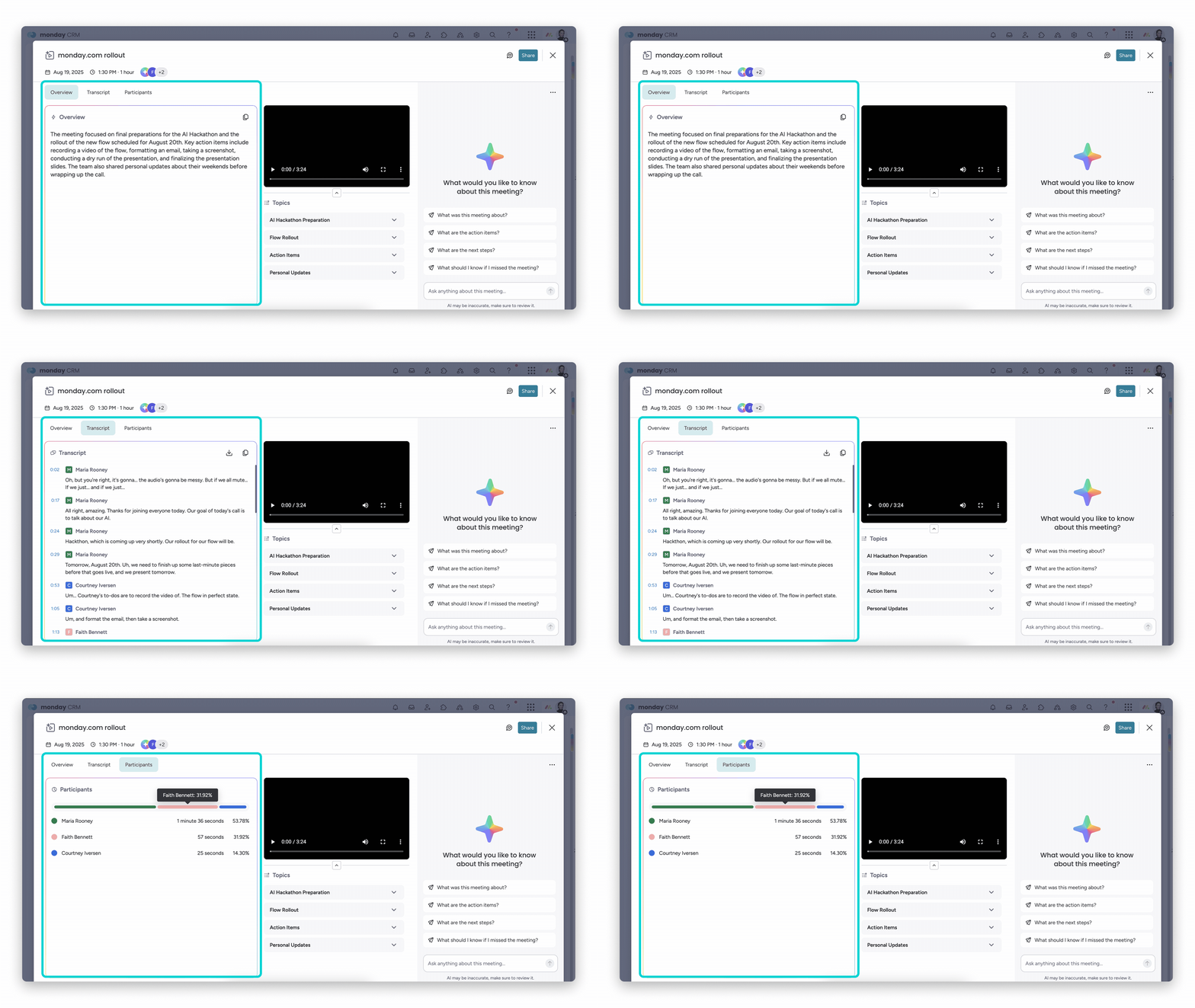
An overview of the key features
Real-time transcription on all major platforms
The AI Notetaker works with the three most widely used meeting tools in the business world: Zoom, Microsoft Teams and Google Meet. No matter which platform your team uses – the AI is ready.
Structured meeting summaries:
Instead of wading through a long transcript, you’ll receive a clear summary of the key points, decisions and next steps. This saves time – not just for you, but also for everyone who couldn’t attend.
Action items straight from the meeting to your board
A real highlight: in the ‘Action items’ tab, you’ll see a list of all the tasks the AI has extracted from the conversation. You select the relevant items, choose the workspace and board – and with a click on ‘Add action items’, they’re created as sub-items of an item. This turns meetings into real workflows, without anyone having to manually assign tasks.
GIF
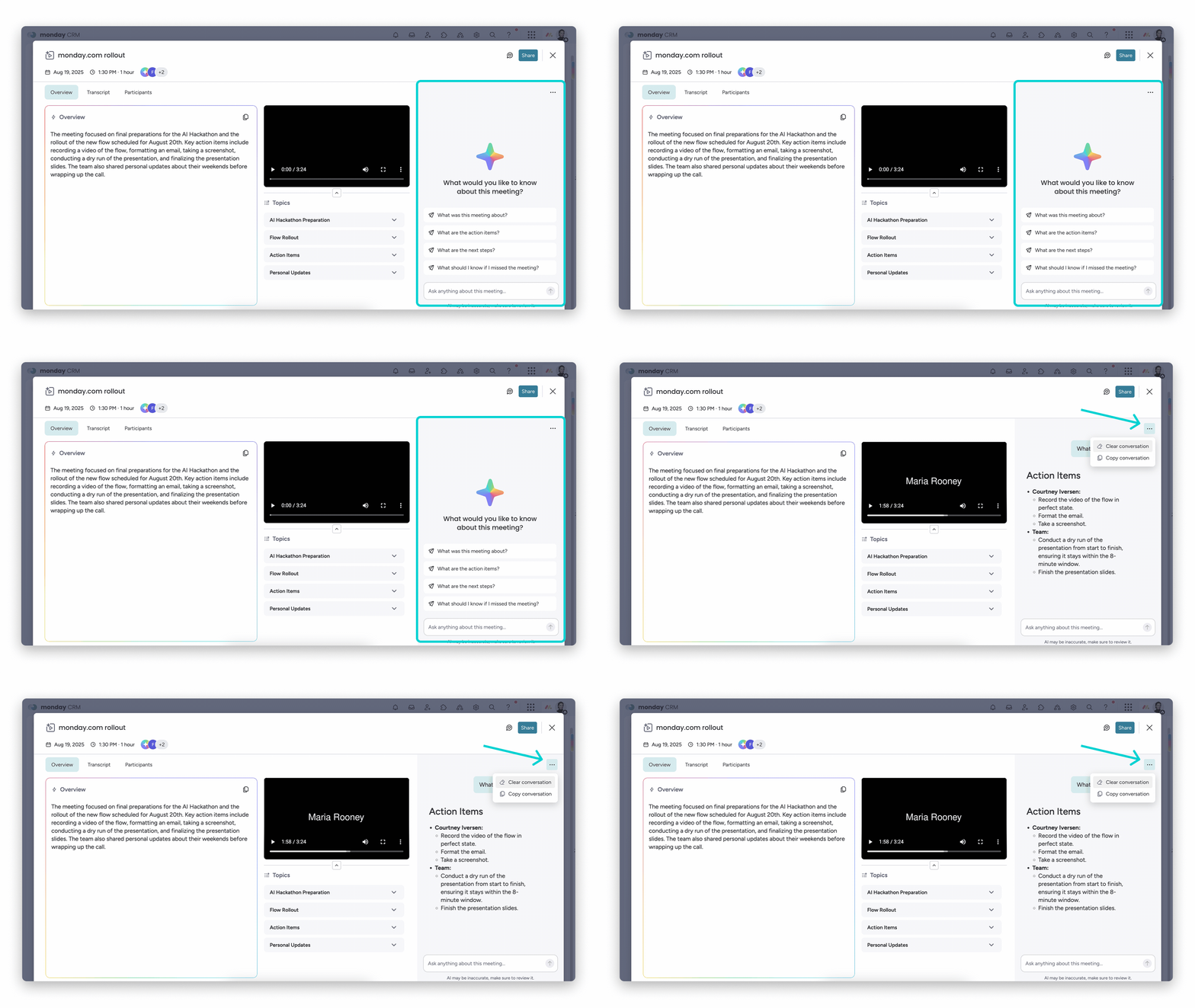
AI Chat for the Meeting
Want to know exactly what was discussed on a particular point after the meeting? Just ask the AI Chat. You can also use the three-dot menu in the top right-hand corner to delete or copy the conversation so you can forward it.
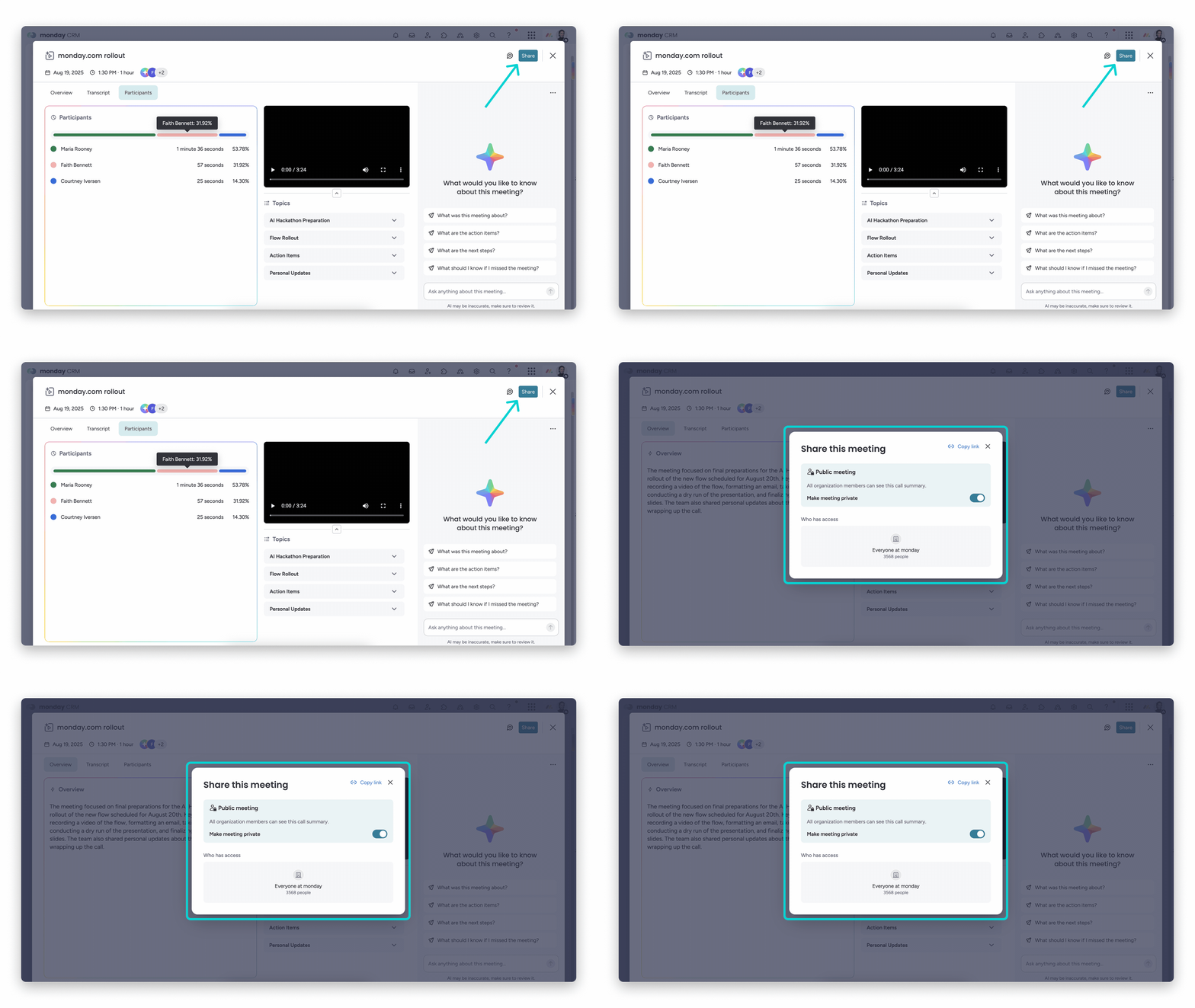
Sharing with granular control
On the Meeting Summary page, you can use the ‘Share’ button to adjust the visibility settings or copy a link to share. You decide whether the meeting is public or private:
- Private: Only meeting participants from your organisation can access the summary.
- Public: You can invite additional team members to view the summary.
Automatic integration with monday CRM
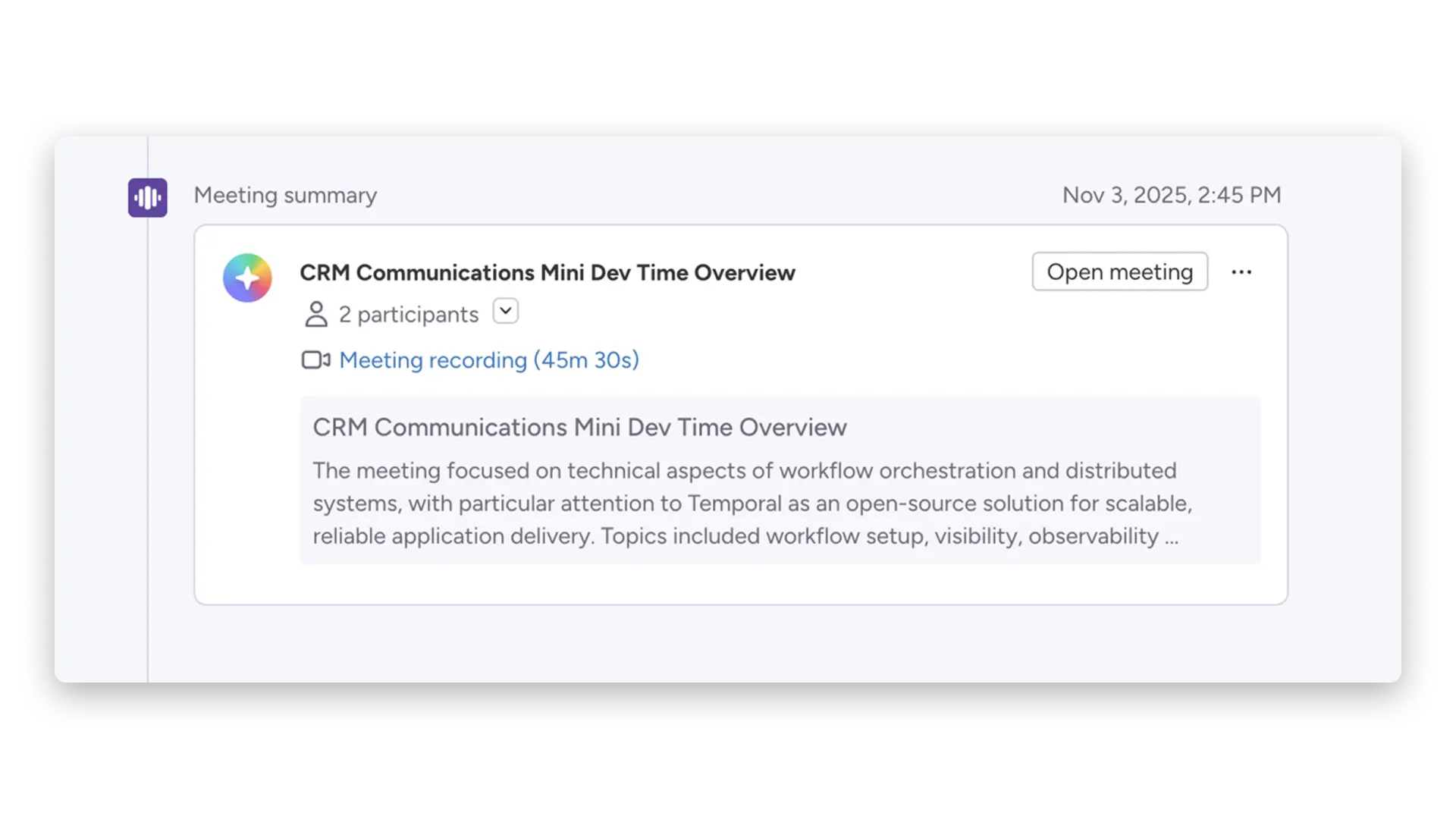
If a meeting participant’s contact details match those of a CRM contact, the meeting summary automatically appears in that contact’s Emails & Activities timeline. This means your sales team always has a complete view of the communication history – without the need for manual updates.
Use Case: How your sales team can benefit
Imagine an account executive is holding a discovery call with a potential client on Zoom. The AI note-taker automatically joins the call, transcribes the conversation and, after the call, creates:
- A summary of the client’s pain points, budget requirements and decision-making criteria
- A list of follow-up tasks such as ‘Arrange a demo’, ‘Send a pricing proposal’, ‘Schedule a technical meeting with IT’
- An entry in the contact’s CRM timeline with the full context
With a single click, the Account Executive adds the action items as sub-items under the deal. The Sales Manager can use the AI chat to ask afterwards whether the customer mentioned any competitors. And the marketing team can use the sharing function to access the insights and refine the messaging strategy.
Where is the AI Notetaker available?
The monday.com AI Notetaker is available in the following products:
- monday CRM,
- monday Work Management,
- monday Service and
- monday dev
It is used at account level and billed in meeting hours. Via the Notetaker tab in the AI settings, you can check at any time how many hours have already been used and how much of your allowance remains – an important tool for admins who want to keep an eye on adoption within the team.
Account settings
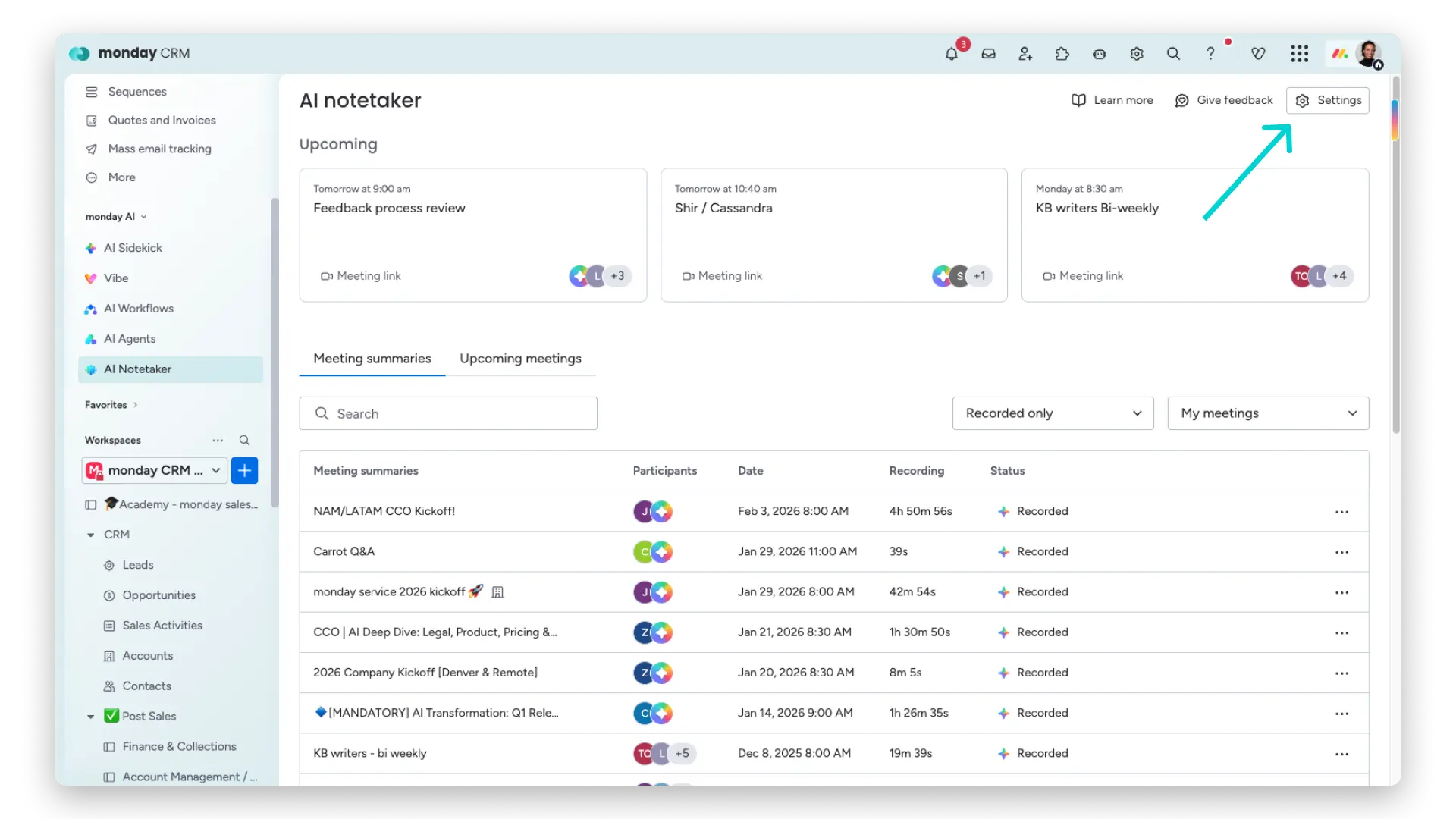
Note: Only administrators can change the account settings. The account settings override the personal settings of all users. To adjust the account settings, open AI Notetaker and select ‘Settings’ in the top-right corner:
Automatic join function
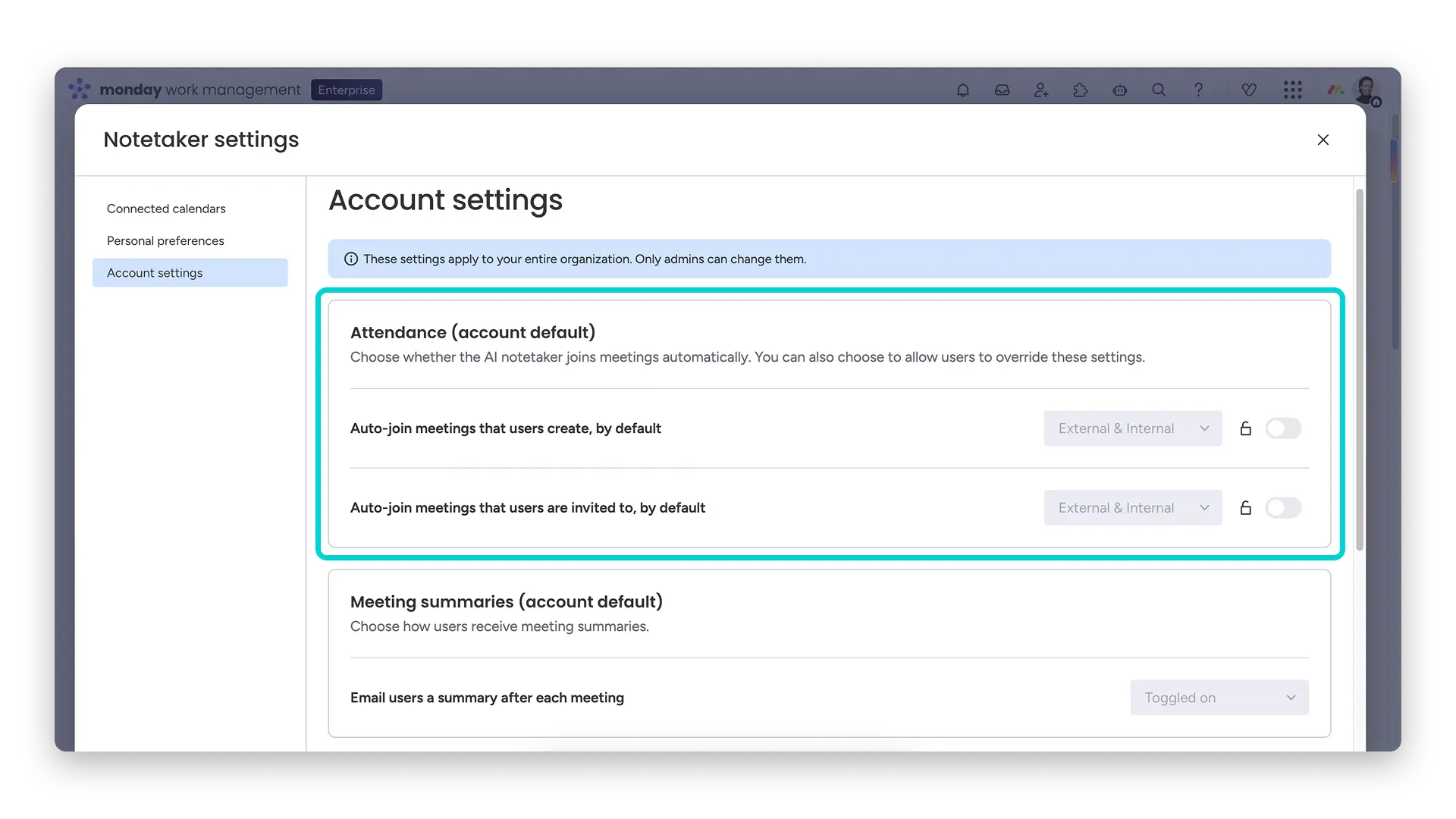
Administrators can customise how AI Notetaker automatically joins meetings. To do this, go to Settings > Account Settings. You’ll find these settings in the Attendance section. The account administrator can specify whether AI Notetaker is added to meetings they have created themselves or to those they have been invited to – both internal and external.
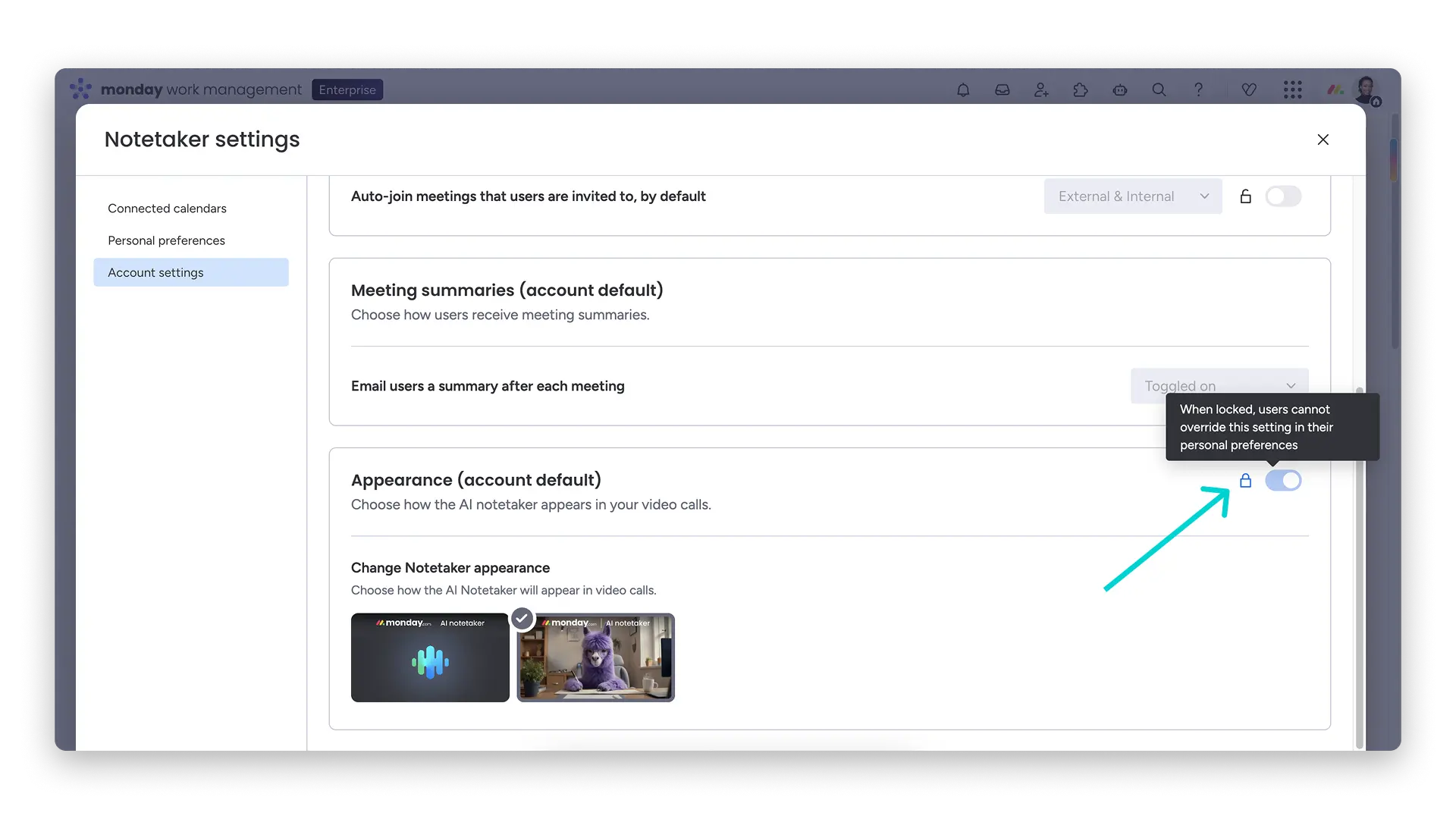
Administrators can lock these settings for all users using the padlock icon. This prevents individual users from changing the automatic join setting. The administrator’s decision takes precedence over personal preferences.
Email summaries
You can choose whether account users receive an email summary after every meeting with Notetaker. To adjust this setting, go to ‘Settings’ > ‘Account settings’ and scroll down to the ‘Meeting summaries’ section.
Usage settings
In the ‘Usage Settings’ section, administrators can view a comprehensive overview of adoption, engagement and remaining hours, enabling them to plan ahead with confidence. To adjust your usage settings, open the AI Notetaker and select ‘Settings’ in the top-right corner. In the ‘Settings’ menu, select the ‘Usage’ option.
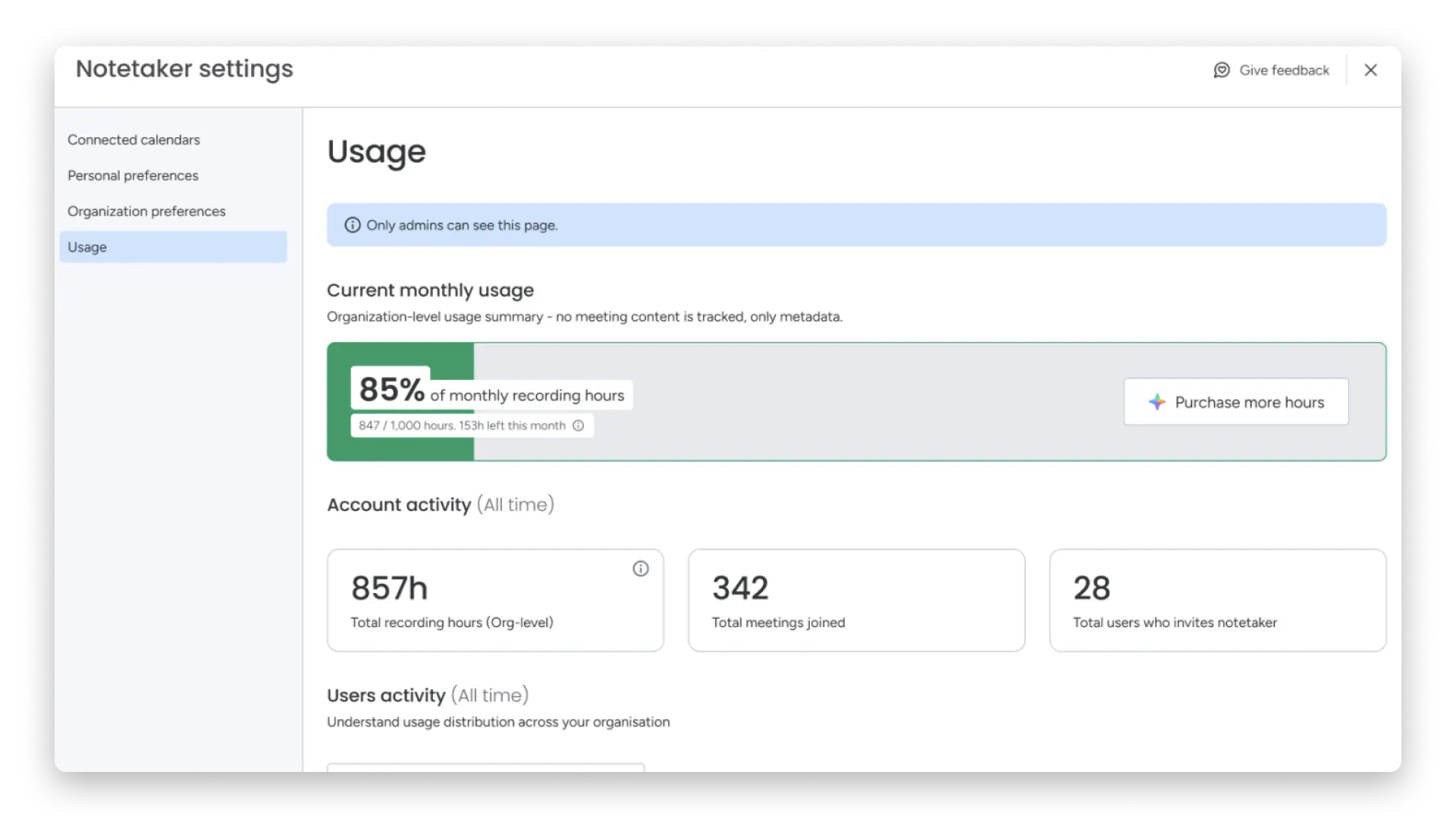
On this page, you can view your account’s current monthly usage. This includes the total number of recording hours for the current month. You will also find a detailed overview of all account activity here. This includes:
- Total hours of recording
- Total number of meetings attended
In the following section, ‘User Activity’, you can view usage by user. This includes:
- The total number of meetings attended by the AI note-taker
- The total number of hours the AI note-taker has recorded for the user
- The date on which the user started using the AI Notetaker.
- The date of the last invitation to the AI note-taking service
User access
Administrators can specify which users have access to Notetaker. To adjust a user’s access rights, open the settings again and, under ‘Usage’, scroll down to the ‘User activity’ section. Find the relevant user in the list, click on the three dots to the far right of their name, and make the desired changes.
Conclusion: An AI tool that really makes meetings more productive
The monday.com AI Notetaker is more than just another transcription tool; it bridges the gap between discussion and action. By not only documenting meetings but also transferring action items directly into your workflows and automatically feeding insights into your CRM, it closes a gap that costs many teams time every day: the manual process of turning what is said into what is done.
If you’re already using monday.com and want to unlock the full potential of its AI features for your team, the AI Notetaker is the logical next step. Want to know how to integrate the AI Notetaker seamlessly into your monday.com workspace, set up useful automations for meetings, or prepare your team for the new workflow? Then get in touch with us.


.svg)